Eight things that will break before the endpoint is useful and exactly why each one happens.
vLLM 0.19 · Devstral Small 2 / Nemotron 3 Nano · RTX PRO 6000 · Hermes Agent
A 3-part series on self-hosting a coding model on RunPod.
Part 1: Running a coding model on RunPod: 8 things that will break (you are reading this)
Part 2: Devstral or Nemotron on RunPod: the complete vLLM + Hermes setup guide
Part 3: You’ve set up your coding model on RunPod. What’s next? — sampling, evaluation, ongoing operation
This post covers eight problems you will hit when setting up a self-hosted coding model on RunPod with vLLM. The setup: an endpoint that serves a local coding agent.
The agent is Hermes, a local agent framework by NousResearch. Hermes runs on your machine and makes requests to an OpenAI-compatible API endpoint for code generation, tool use and multi-file editing.
The endpoint runs on a RunPod GPU pod with vLLM serving the model. Your code stays on your infrastructure, you pay per GPU-hour instead of per token and you can run open-weight models that no hosted API offers.
The problems below are not about the model or the agent. They are about the space between them, where the information you find in guides, model cards and forum posts is technically correct for a different tool or a different inference stack than the one you are using. Each of those gaps costs time. This post covers eight of them. They are in the order you are likely to hit them.
#1: Model size numbers are not interchangeable
When you look up the “size” of a model, you will usually find a number. The problem is that different tools and guides are often talking about different things.
That number might refer to:
- parameter count
- quantized weight size
- checkpoint download size
- runtime precision
- actual VRAM required to serve the model
These are not the same.
For example, a GGUF size from a llama.cpp guide usually refers to an already-quantized artifact on disk. A vLLM deployment, by contrast, typically starts from Hugging Face checkpoints and loads weights in the precision provided or configured for serving. That often means a much larger memory footprint than the number you saw in a GGUF-based guide.
The same model can therefore appear to be “small enough” in one ecosystem and fail to load in another.

This gets even more confusing with Mixture-of-Experts models. MoE can reduce the number of parameters active per token but that does not automatically mean the full model is cheap to load or serve in every inference stack. The efficiency often shows up in compute per token, not necessarily in initial memory requirements.
What this looks like in practice:
torch.OutOfMemoryError: Tried to allocate 2.00 GiB.
GPU 0 has a total capacity of 94.97 GiB...
The lesson. Before picking a model, confirm which size number you are looking at and which runtime it applies to. A quantized artifact size and a full-precision serving footprint can differ by several multiples.
For single-GPU planning, treat published model size as a starting point, not a deployment answer. Always account for runtime precision, KV cache, framework overhead and concurrency before deciding whether a model will fit.
#2: Some models ship a pre-quantized checkpoint. Use it when they do
For models where the standard BF16 checkpoint is too large for your GPU, some Hugging Face repos also ship a separate FP8 checkpoint. This is usually a different model ID, not just a flag. If it exists, start with that.
In practice, this can cut load-time VRAM roughly in half and make the difference between an OOM and a clean launch.
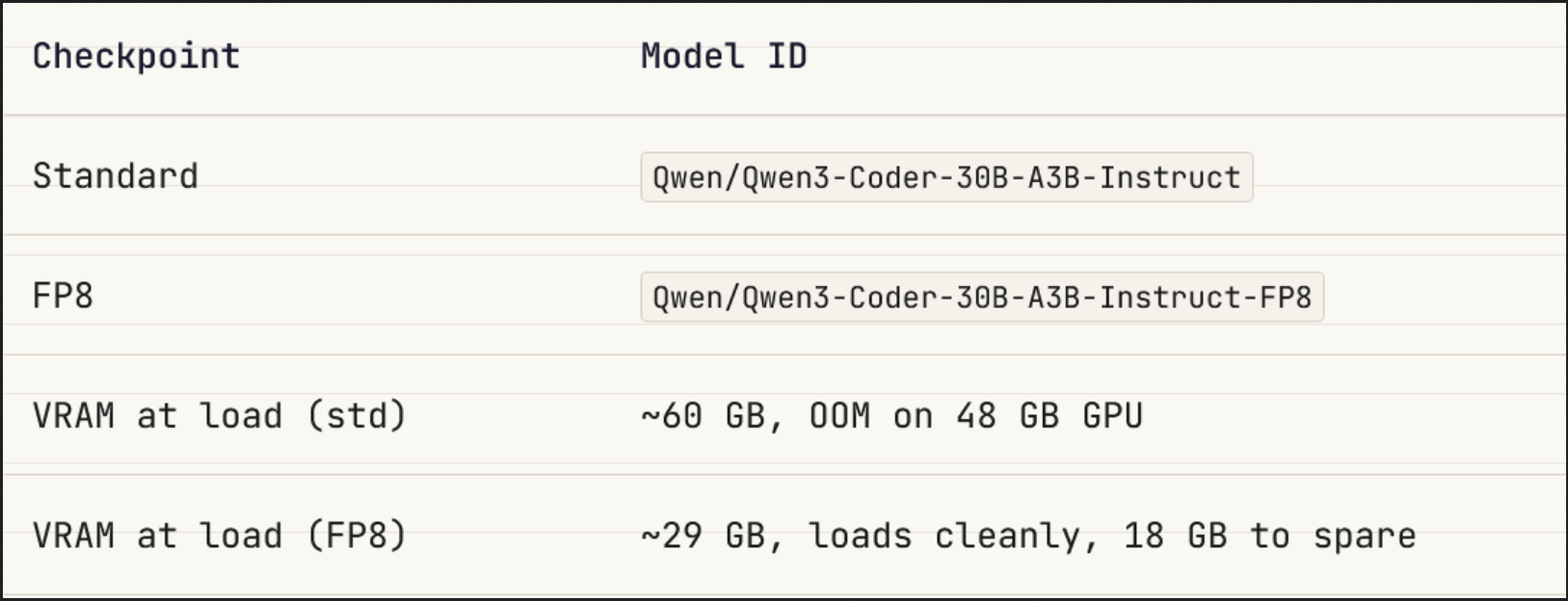
Not every model has this option. Some still ship BF16 only, so you pay the full BF16 footprint unless you accept runtime quantization.
For larger models where the standard checkpoint is already borderline, checking the repo for an FP8 variant before launching vLLM can save a lot of wasted time.
The lesson. Check the model’s Hugging Face repo page — especially the published files and available variants — before launching vLLM.
If a pre-quantized FP8 checkpoint exists, it is often listed as a separate model ID, repo, or directory. Use that directly.
If no FP8 checkpoint exists and the BF16 size exceeds your VRAM, runtime quantization with --quantization fp8 is the fallback. But read blind spot #3 first.
#3: Runtime quantization does not shrink the download
Adding --quantization fp8 to a vLLM command can reduce the in-VRAM weight footprint. It does not reduce the size of the checkpoint that has to be downloaded first.
In the common case, vLLM still pulls the full BF16 checkpoint from Hugging Face, then applies quantization during load. If your network volume cannot hold BF16 download, the job can fail mid-transfer.
What quota exceeded looks like mid-download:
model-00001-of-00040.safetensors: 100%  4.00G  (shard 1 of 40)
model-00002-of-00040.safetensors: 100%  4.00G
... 22 more shards ...
model-00025-of-00040.safetensors:  34%  1.34G
RuntimeError: IO Error: Disk quota exceeded (os error 122)
The partial download then occupies the volume until you clear it (RunPod example):
# Delete the failed partial download before retrying
rm -rf /workspace/hf/hub/models--<org>--<model-name>
df -h /workspace  # confirm space is back
The lesson. Size your network volume against the BF16 or source checkpoint download, not the quantized in-memory size.
As a planning heuristic, leave headroom above the advertised checkpoint size for shard overhead, cache metadata, partial retries and cleanup. If the model is large, a barely-sufficient volume often is not sufficient in practice.
A partial download that fills the volume will block later attempts until you clear it. After any failed download, check df -h /workspace before retrying.
#4: Context window and model size compete for the same VRAM
VRAM not used by weights is available for the KV cache, which determines how many tokens of context the model can actually hold at runtime. A larger model leaves less room for context.
That means a smaller model can sometimes be the better choice for coding-agent workflows. On a single 96 GB card, for example, a 24B model at BF16 may give you substantially more usable context than an 80B model at FP8.
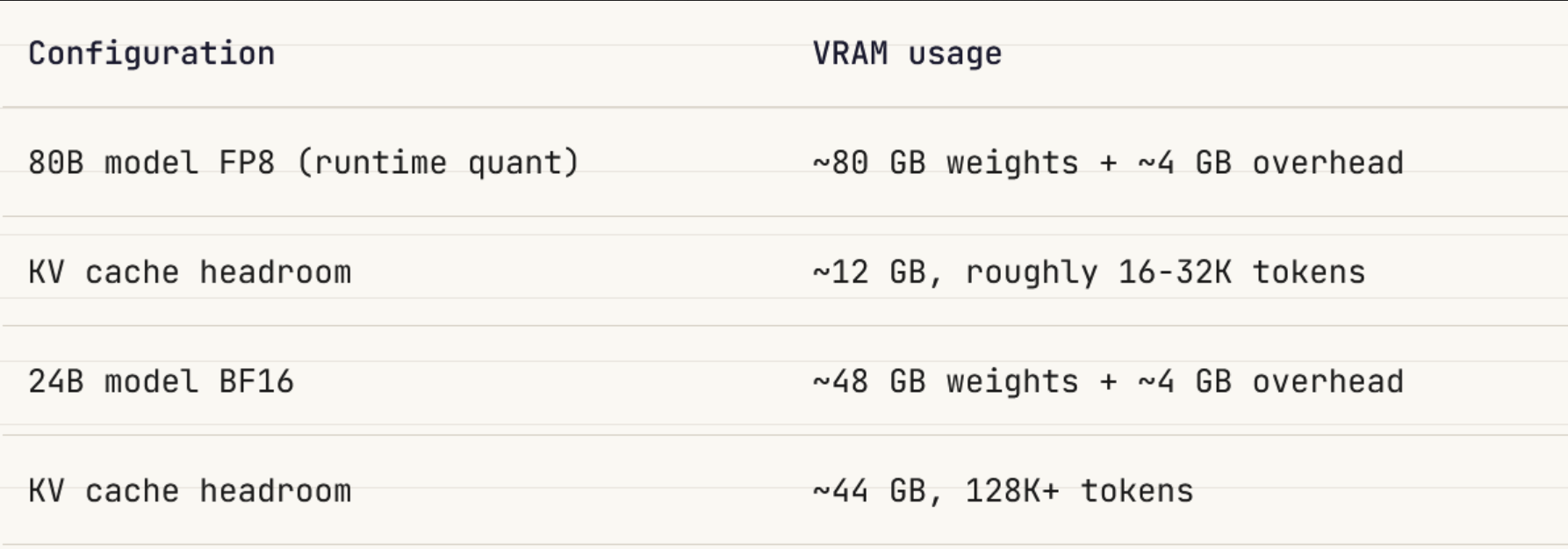
The exact token count depends on KV cache dtype and the model’s shape. KV cache per token scales with 2 × hidden_dim × num_layers × dtype_bytes across keys and values. Switching from BF16 KV cache to --kv-cache-dtype fp8 can roughly halve the per-token KV cost and materially increase usable context at the same VRAM budget.
For agentic coding workflows (the kind Hermes runs, where the agent reads files, plans edits and reasons across multiple parts of a codebase) context window often matters more than raw model size. A model that can hold enough of the working set in context may perform better on cross-file tasks than a larger model that runs with very limited KV headroom.
The lesson. On a single 96 GB card, do not optimize for model size in isolation. Optimize for the combination of weights and usable context.
In practice, 24B-30B models are often a better long-context coding tradeoff on a single 96 GB GPU than trying to squeeze in a much larger model with very little KV cache headroom.
70B+ models usually need either a native FP8 checkpoint or multiple GPUs if you want both the model and meaningful context headroom.
The model’s advertised native context window (256K, 1M etc.) is a ceiling, not a guarantee. Your actual usable context is limited by the VRAM left after the weights load.
#5: Cache paths default to ephemeral disk (RunPod)
RunPod pods have two storage layers:
- a mounted network volume, which persists across pod stops
- a root disk, which is wiped when the pod stops
By default, most of the stack writes to the root disk. That means every session starts from scratch unless you explicitly redirect those paths to your mounted volume.
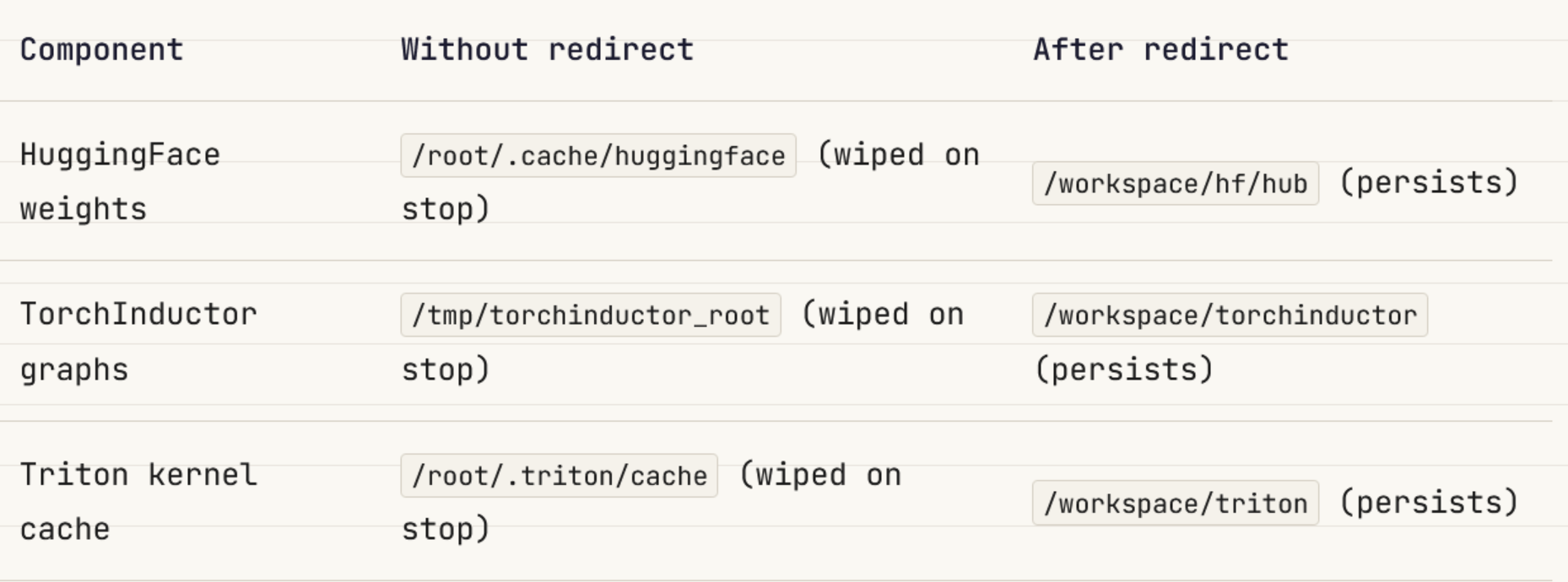
Set these before vLLM starts, ideally in the launch script rather than as manual shell steps:
export HF_HOME=/workspace/hf
export HUGGINGFACE_HUB_CACHE=/workspace/hf/hub
export XDG_CACHE_HOME=/workspace/.cache
export TMPDIR=/workspace/tmp
export TORCHINDUCTOR_CACHE_DIR=/workspace/torchinductor
export TRITON_CACHE_DIR=/workspace/triton
A mounted volume does not automatically redirect anything. Mounting /workspace only makes persistent storage available. Each component still has to be pointed at it explicitly.
This is what makes the failure mode confusing: if even one cache path is left on root disk, the problem often shows up later as something that looks unrelated to storage — a failed compile, an unexpected re-download or an out-of-space error in the middle of startup.
The lesson. Redirect every cache path in the launch script — not interactively and not in a shell profile you may forget to load.
HF_HOME and HUGGINGFACE_HUB_CACHE look redundant, but set both. Different Hugging Face components and versions do not always honor the same variable.
#6: On RunPod, a stop is not a true pause
Stopping a RunPod Pod is not the same as pausing a process on a live machine.
- A Pod is tied to a specific physical host while it exists.
- When you stop it, the reserved GPU on that host is released back to the marketplace.
- If that GPU is no longer available when you restart, the Pod may come back as a Zero GPU Pod or require migration.
- In migration cases, RunPod creates a new Pod with a new ID and IP rather than simply resuming the old one in place.
That distinction is important because persistent storage only solves part of the problem.
If your weights and caches are redirected to /workspace or better to a network volume, you avoid re-downloading everything from scratch. But the vLLM process still has to start again, reload the model into VRAM, rebuild process-local state, size the KV cache, rerun warmup and capture CUDA graphs. Those costs come back on every start even when the files are already on disk.
What first startup actually cost (on my setup). Measured on a 96 GB RTX PRO 6000 Blackwell with a 30B FP8 model under vLLM 0.19, after pip-install of vLLM and a fresh ~32 GB weight download:
| Phase | Time | Cacheable across restarts |
|---|---|---|
| pip install vLLM (fires every stop/start) | ~60-90s | No, root disk wipes |
| HuggingFace shard download (32 GB) | 51s | Yes, on /workspace |
| Model load into VRAM | 5s warm, 39s cold disk read | Partial |
| torch.compile (Dynamo + Inductor) | 2-4s warm, longer cold | Yes, vLLM has its own cache |
| FlashInfer autotune | ~5s | No, per process |
| Profile / KV cache / model warmup | ~245-250s | No, runs every start |
| CUDA graph capture | ~2s | Partial |
| Total: config-parse to ready | ~5m 04s warm, ~5m 31s cold |
Two related findings worth knowing:
- vLLM has its own torch.compile cache, separate from inductor and triton. It lives at
$XDG_CACHE_HOME/vllm/torch_compile_cache/. The setup in this post pointsXDG_CACHE_HOMEat/workspace/.cache, so it persists for free. If you wipe/workspace/torchinductorand/workspace/tritonto force a cold compile (for debugging or measurement), the vLLM cache still hits. You only get a true cold compile by also wiping/workspace/.cache/vllm. - pip install fires on every stop/start, not just on GPU migration. The root disk wipes whenever the pod stops, even for a clean restart on the same physical host. The launch script’s
if ! python -c "import vllm"block runs on every restart. Plan for the 60-90 seconds it takes.
Two practical implications:
- A mounted volume helps only with the parts that are actually file-backed. It does nothing for process-local startup phases.
- If you install packages onto the root disk at launch time, that cost returns on every stop/start too. Bake dependencies into the image if you want to avoid paying that repeatedly.
The lesson. On RunPod, “stop and restart later” should be treated as a fresh process launch with partial storage reuse — not as a true pause/resume.
#7: OpenAI-compatible does not mean tool calling works by default
vLLM exposes /v1/chat/completions and handles plain chat requests correctly out of the box. Tool calling is different.
When a model generates a tool call, it emits a sequence of tokens in a format specific to how that model was fine-tuned.
Mistral models emit tool calls in one token format. Qwen models use a different one. Llama 3 and Hermes-family models use yet another. These are not minor variations. They are structurally different output patterns baked in during fine-tuning. vLLM needs to parse the model’s raw output and extract structured tool-call JSON from it.
The --tool-call-parser flag tells vLLM which token pattern to look for. Without it or with the wrong value, vLLM cannot parse tool calls the model is generating.
You also need --enable-auto-tool-choice to activate tool-call handling at all. Both flags are required. Without them, Hermes gets HTTP 400 on every agentic request.
curl /v1/models         -> 200 OK
tool_choice="auto"      -> HTTP 400 Bad Request
Common parser mappings:
# Mistral family (Devstral, Codestral, Mistral-Large)
--enable-auto-tool-choice --tool-call-parser mistral

# Qwen3-Coder family
--enable-auto-tool-choice --tool-call-parser qwen3_coder

# Llama 3 / Hermes family
--enable-auto-tool-choice --tool-call-parser llama3_json
For models outside these families, check the vLLM supported-model documentation and confirm the expected parser before wiring up any agent UI.
The lesson. Test tool calling with curl before opening Hermes or any other agent interface. If a request with tool_choice="auto" returns 400, the usual cause is a missing or incorrect tool-call parser. Debug that at the API layer first. Hermes often only shows the symptom, not the root cause.
#8: The API key is easy to lose in one shell and easy to leak in another
vLLM API-key handling has two sharp edges.
First, the key is often passed through the shell session that launches vLLM. A new SSH session into the same pod does not automatically inherit it. That means the server may be working fine while your test client fails with Unauthorized simply because $VLLM_API_KEY is empty in the current shell.
What that looks like:
curl http://127.0.0.1:8000/v1/models \
  -H "Authorization: Bearer $VLLM_API_KEY"

{"error":"Unauthorized"}
In that case, the endpoint may be healthy. The problem is that the client shell does not have the same key loaded.
Second, vLLM startup logs can include the API key in plaintext in the non-default args line. That means every pasted startup log is a potential secret leak.
non-default args: {..., 'api_key': ['a3f8c2d1...your_key_here...'], ...}
So the same setup creates two opposite failure modes:
- the key is missing where you expect it
- the key is exposed where you do not expect it
The safest setup is:
# In the launch script
export VLLM_API_KEY="your_fixed_generated_key"

# Generate one with:
openssl rand -hex 32
Then mirror that same value in the client environment Hermes uses:
export OPENAI_API_KEY="same_key_value"
export OPENAI_BASE_URL="https://YOUR_RUNPOD_URL/v1"
Store the key in a password manager or secret store, not in random shell history or logs. If a startup log containing the key has left the pod, rotate it.
The lesson. Treat authentication failures and log hygiene as the same setup problem. Rotate the key any time it appears in a log that left the pod. That includes startup logs pasted into debugging sessions, error dumps shared anywhere and shell history that syncs to cloud.
Quick reference
- Is your model size figure GGUF or BF16? Multiply GGUF by 3-4x to get the vLLM download size.
- Does the HuggingFace repo have a native FP8 checkpoint? Check the Files tab. If so, use that model ID.
- Is your network volume large enough for the full BF16 download, not the quantized footprint?
- After the model loads, how much VRAM remains? That is your actual context ceiling.
- Are all six cache paths redirected to
/workspacein the launch script, not set manually per session? - Have you tested tool calling with curl before opening Hermes or any other agent?
- Is the API key fixed in the launch script? Have you rotated any key that appeared in a pasted log?
None of these are obscure. Each piece is documented somewhere — in vLLM docs, RunPod guides, model cards or forum threads. What is missing is the system view: how they connect, where they collide, and in what order they fail. That is where these eight blind spots come from.
Series navigation: